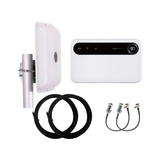
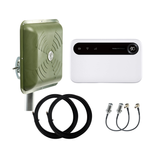
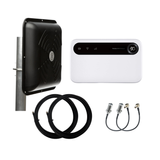
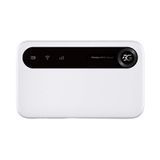
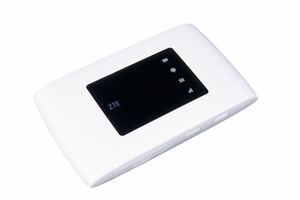
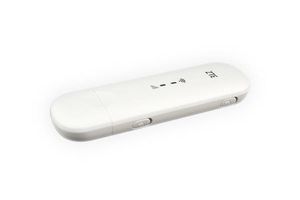
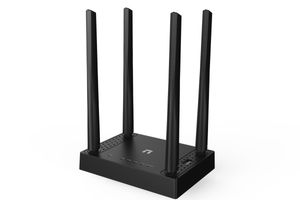
User Guide: ZTE U50 5G Wi-Fi Router with External Antenna
This guide explains how to properly prepare the SIM card, turn on the router, connect an external antenna, enter the WEB interface, check the signal level, and adjust the antenna for more stable internet operation.
What this guide is for
To help the user connect the ZTE U50, an external antenna, and correctly aim it at the operator’s base station.
Main condition
It is not enough to simply connect the antenna. It must be installed and aimed correctly.
What the antenna improves
It usually improves stability, upload speed, and signal quality. Download speed also depends on the operator’s network load.
Quick connection procedure
Prepare the SIM card
The SIM card must be active, the tariff plan must be paid, and the PIN code must be disabled.
Insert the SIM into the router
A Nano SIM is used. The slot is located under the device cover.
Connect the external antennas
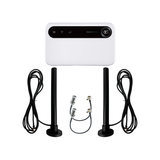
For MIMO operation, two cables must be connected to the two TS9 connectors.
Turn on the router
Press the power button and wait until the device fully starts.
Connect to Wi-Fi
The SSID and Wi-Fi Key are shown on the factory label under the cover or under the battery.
Open the WEB interface
Open a browser and enter 192.168.0.1. Login: user. The password is shown on the factory label.
Detailed instructions
1. Preparing the SIM card
Before inserting the SIM card, check three things:
- the SIM card is active;
- the tariff plan is paid;
- the PIN code is disabled.
If the PIN code is enabled, disable it in advance using a smartphone. It is also recommended to test the SIM card in a phone — mobile internet should work.
2. Turning on the ZTE U50
- Insert the Nano SIM.
- Connect the external antennas if they are used.
- Press the power button.
- Wait until the router fully starts.
If the Wi-Fi network does not appear immediately, wait a few more seconds — the device may still be finishing startup.
3. Connecting to Wi-Fi
The Wi-Fi network name and password are shown on the factory label:
- SSID — Wi-Fi network name;
- Wi-Fi Key — Wi-Fi password.
Connect to the network from a phone, laptop, or computer.
4. Connecting the Mobile Guard magnetic antenna
In a vehicle:
- the antenna is installed on the metal roof;
- preferably at the highest central point;
- the vehicle roof works as the antenna ground plane.
In an apartment or house:
- it is better to install the antenna outside the room;
- the optimal option is on an external metal window sill;
- indoor installation significantly reduces efficiency.
5. Connecting the panel MIMO antenna
The ZTE U50 has two TS9 connectors for connecting an external MIMO antenna.
- Open the protective covers on the lower part of the router.
- Connect the first cable to the first TS9 connector.
- Connect the second cable to the second TS9 connector.
- Insert the TS9 connectors straight, without misalignment or excessive force.
- The antenna works as a MIMO 2×2 system.
- Both cables must be the same length.
- Do not leave one of the two channels disconnected if a MIMO panel is used.
6. Correct placement of the panel antenna
The antenna installation location directly affects the result.
- It is optimal to install the antenna outside the building.
- The preferred height is above roof level.
- Obstacles should be minimized: walls, concrete, metal, roofing.
- Do not install the antenna inside a room if outdoor mounting is possible.
In apartment buildings where mounting on the facade or roof is impossible, installation behind a window is acceptable as a compromise. Efficiency will be lower with this option.
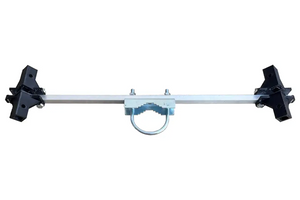
Do not tighten the mount completely during initial installation. The antenna will need to be rotated to find the best direction.
7. Entering the router WEB interface
- Connect to the ZTE U50 Wi-Fi network.
- Open a browser.
- Enter the address: 192.168.0.1
- Login: user
- Password: shown on the factory label.
8. Where to check the signal level
In the WEB interface, open:
Advanced Settings → Others → Network Information
In this section, check:
- Signal Strength / RSRP — received signal level;
- SINR — signal quality and signal-to-noise ratio.
If there is no separate RSRQ value, Signal Strength / RSRP and SINR are enough for practical antenna adjustment.
9. How to correctly aim the panel antenna
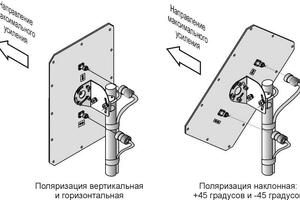
- Aim the antenna approximately toward the settlement or the operator’s base stations.
- Rotate the antenna horizontally in small steps.
- After each rotation, wait 20–30 seconds.
- Check Signal Strength / RSRP and SINR.
- Additionally test the internet speed.
- Leave the antenna in the position where stability and speed are best.
10. Power saving mode
The WEB interface provides two ways to reduce battery load.
Power saving mode:
Advanced Settings → Others → Power Saving Mode
Reducing Wi-Fi power:
Settings → Wi-Fi → Advanced Settings → Wi-Fi Coverage → Short Wi-Fi Coverage — Best battery life
These settings may increase battery life, but they reduce Wi-Fi coverage range and may affect wireless network performance.
Signal assessment during setup
| Parameter | Good | Acceptable | Poor | Meaning |
|---|---|---|---|---|
| RSRP / Signal Strength | −75…−95 dBm | −95…−105 dBm | below −105 dBm | Received signal level from the base station |
| SINR | above 10 dB | 5–10 dB | below 5 dB | Signal quality and interference level |
Common mistakes
Only one cable is connected
A MIMO antenna requires two cables. One cable reduces speed and stability.
The antenna is placed indoors
Walls, glass, concrete, and metal significantly reduce performance. Outdoor mounting is almost always more effective.
The antenna was not aimed
The antenna must be pointed in the correct direction. Without aiming, the effect may be minimal.
What result should be considered normal
After correct installation and adjustment, you will usually see:
- more stable connection;
- better upload speed;
- fewer drops and freezes;
- possible download speed improvement;
- better performance in areas with weak signal.
Important: maximum speed depends not only on the antenna, but also on the operator, frequencies, base station load, tariff plan, terrain, and distance to the tower.
Quick checklist before contacting support
- The SIM card is active and the tariff plan is paid.
- The SIM PIN code is disabled.
- The router has fully started.
- Both antenna cables are connected to TS9.
- The antenna is installed outside or as close as possible to an outdoor location.
- The antenna is aimed toward the base station.
- After each antenna rotation, there was a 20–30 second pause.
- RSRP / Signal Strength and SINR were checked in the WEB interface.
Need more stable ZTE U50 performance?
For the ZTE U50, it is important to correctly select the antenna, cables, and installation location. If the signal is weak or the speed is unstable, the problem is most often not the router itself, but the antenna placement, direction, or base station overload.