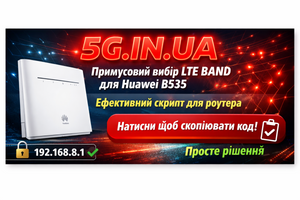
Force Selection of BANDS for Huawei 4G Routers

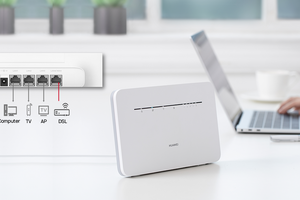
This guide allows you to manually select the desired LTE BANDS (frequency ranges) for Huawei routers (B525, older revisions of B535, B618, E5186, and others with the web interface at 192.168.8.1).
Setup Steps
- Connect to the Wi-Fi network of your Huawei 4G router.
- Open this page in your browser:
http://192.168.8.1
- Log in (the default username/password is usually admin).
- Create a new bookmark in your browser named BANDS.
- Copy the script below and paste it into the URL field of the freshly created bookmark, then save it.
Copy the Script
How to Use
- After creating the bookmark, open the router’s WEB interface at
192.168.8.1in your browser. - Click the created BANDS bookmark.
- A panel with the BANDS button will appear at the top of the page.
- Click BANDS, enter the band number (for example, 3 for Band 3) and press OK.
- To select multiple bands, use the format 3+7 (Band 3 and Band 7).
- For automatic selection, type AUTO.
Note: This function works only on older Huawei routers with open API access (/api/net/net-mode).
What to Do if the Script Doesn’t Work on Your Huawei Router
🛠️ 1. Run the script only on http://192.168.8.1
The script works only from within the Huawei web interface. If you run it from another website or a local HTML file, the browser will block requests due to CORS (security policy).
🔧 Solution:
- Open in browser:
http://192.168.8.1 - After the page fully loads, run the script.
🧠 2. Do not use HTTPS
Huawei modems use unencrypted HTTP. If you opened the interface via https://192.168.8.1, the browser will block the script.
🔧 Correct approach:
- Use only
http://192.168.8.1
🔐 3. Use a device connected to this modem
If you open the page on a different Wi-Fi or over mobile data, requests won't reach the modem.
🔧 Check:
- Your phone or computer must be connected to Huawei Wi-Fi
- The address bar must show:
http://192.168.8.1
🧪 4. Disable ad blockers
Extensions like AdBlock, uBlock, Brave may block parts of the script or modem API requests.
🔧 Solution:
- Disable these extensions on
192.168.8.1 - Or open the page in incognito mode without extensions
🧰 5. Check DevTools → Console
Press F12, open the Console tab, paste the script, and look for messages:
🔴 If you see these errors:
| Message | Reason |
|---|---|
Access to XMLHttpRequest...has been blocked by CORS policy |
You did not run the script on 192.168.8.1 |
Mixed Content blocked |
Attempting an HTTP request from an HTTPS page |
Failed to fetch or status 0 |
The modem isn't responding or there's a network issue |
✅ Recommended Launch Procedure:
- Connect to the Huawei router via Wi-Fi or Ethernet cable
- Open in your browser: http://192.168.8.1
- Log into the interface (if a password is set)
- Open the created “BANDS” bookmark
- You will see new fields: RSRP, RSSI, SINR, Band, Cell ID, and more
📌 If It Still Doesn’t Work:
- Try using a different browser (Chrome, Edge, Firefox)
- Make sure the modem’s IP address is actually 192.168.8.1
- Reboot the modem
- Check that the standard modem interface works without errors